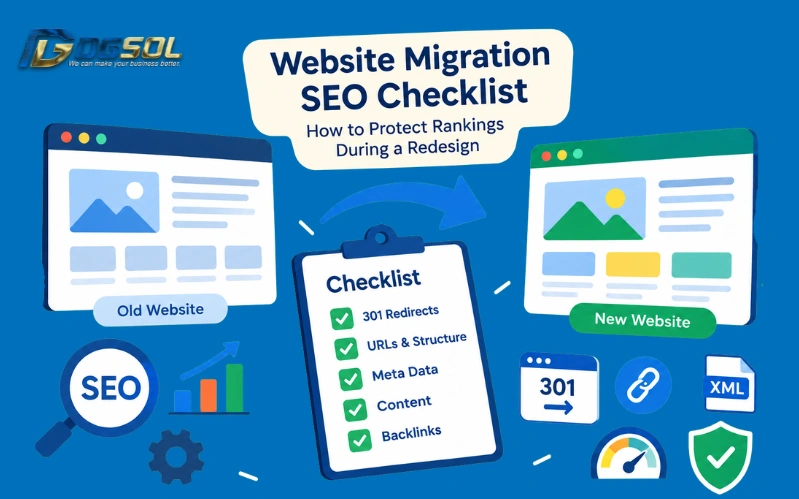
A website redesign or migration can improve your website’s usability, performance, and functionality. However, changing URLs, removing content, restructuring navigation, or modifying technical SEO settings can also affect organic search visibility if not managed carefully.
A successful website migration requires more than launching a new design. You need to understand how the existing website performs, preserve valuable content, map old URLs to their new destinations, test redirects, and verify that search engines can access the new website correctly.
Whether you are redesigning a WordPress website, changing your domain, moving to a new CMS, or updating your website structure, a clear website migration SEO checklist can help you identify risks before they affect important pages.
This guide explains how to prepare for a migration, protect valuable search engine elements, complete launch-day checks, and monitor your website after the redesign.
What Is Website Migration SEO?
Website migration SEO is the process of planning, implementing, and monitoring changes to a website that may affect search engine crawling, indexing, and organic visibility. These changes can involve URLs, domains, hosting, website platforms, content management systems, or a website’s structure and design.
What Types of Website Migration Can Affect SEO?
The migration plan should reflect the changes involved. A design update with unchanged URLs does not require the same redirect process as a domain migration. Different migrations introduce different SEO considerations.
1. Website redesign:
A visual redesign may change layouts, page templates, navigation, headings, and content. If these changes affect important pages or their accessibility, SEO performance may also change.
2. URL structure migration:
Changing page URLs requires a plan for redirecting old URLs to appropriate new destinations.
3. Domain migration:
Moving from one domain to another requires redirects, updated internal links, sitemap changes, and careful monitoring of both domains.
4. HTTP-to-HTTPS migration:
Switching to HTTPS requires consistent URLs, suitable redirects, and updated internal references.
5. CMS or platform migration:
Moving from one content management system to another can change URL structures, metadata, templates, structured data, and website functionality.
6. Hosting migration:
Moving to a new hosting provider without changing URLs is mainly an infrastructure change. You still need to test server responses, availability, performance, and crawling..
Website Redesign vs. Website Migration: What Is the Difference?
A website redesign focuses on changing how a website looks, works, or presents its content. A website migration involves moving some aspect of the website, such as its URLs, domain, platform, or infrastructure. The two can happen together. For example, a business may redesign its website, switch from WordPress to another platform, and reorganise its service URLs in a single project.
Why Can a Website Migration Cause Problems?
A carefully planned migration reduces avoidable risks, but no checklist can guarantee that rankings will remain unchanged. SEO problems may occur when:
- Important pages are removed without suitable replacements.
- Old URLs return errors instead of redirecting appropriately.
- Redirects point to unrelated pages.
- Internal links continue pointing to outdated URLs.
- Canonical tags reference the wrong pages.
- The live website accidentally retains staging restrictions.
- Page content, metadata, or structured data is removed or altered.
- Analytics and conversion tracking stop working.
How to Protect SEO Rankings During a Website Redesign
Before working through the detailed checklist, establish a few principles that should guide the entire project.
1. Preserve Valuable Existing Pages
Identify pages that already attract organic clicks, generate leads or sales, answer important customer questions, or receive relevant external links.Review their performance before deciding whether to retain, improve, merge, redirect, or remove them.
Do not delete a useful page simply because its layout does not fit the new design. Consider whether its content can be preserved in an improved format.
2. Keep Important Content and Metadata
Record the existing titles, meta descriptions, headings, important content, internal links, images, and structured data on priority pages. Compare these elements with the new website before launch. A redesign should improve the user experience without unnecessarily removing useful information.
3. Keep Existing URLs Where Possible
If there is no clear reason to change a URL, retaining it can simplify the migration. When URLs must change, create an old-to-new URL mapping and implement appropriate redirects. Avoid changing URLs solely to make them look shorter or more modern without considering the additional migration work.
4. Test the New Website Before Launch
Use a staging environment to test the new website’s technical configuration, content, navigation, metadata, redirects, and tracking. A staging review allows problems to be corrected before customers and search engines encounter them on the live website.
Website Migration SEO Checklist: Before the Migration
Preparation is one of the most important parts of a website migration. The purpose is to understand the existing website, identify valuable pages, and document what must be preserved.
1. Define the Migration Scope
Start by documenting exactly what will change.
Ask your team:
- Is the project a design update or a full website migration?
- Will the domain name or URL structure change?
- Will the website move to a different CMS or ecommerce platform?
- Will page content, navigation, or categories be removed or reorganized?
- Will hosting, server configuration, or rendering methods change?
- Will analytics, forms, or conversion tracking be modified?
The answers determine which SEO checks are required.
2. Establish an SEO Performance Baseline
Before the migration, record the website’s existing performance. Use Google Search Console, Google Analytics 4, and other relevant business records to document:
- Organic search clicks and impressions.
- Organic traffic to important landing pages.
- Performance of priority queries and keyword groups.
- Organic leads, purchases, and conversions.
- Important pages that generate business enquiries or sales.
- Known indexing and technical problems.
Save the dates of your comparison periods and export relevant URL and performance data.
3. Crawl and Inventory the Existing Website
Use a website crawler to create a list of existing URLs and their important SEO elements.
Depending on the tool, collect:
- URL and HTTP status code.
- Title tag and meta description.
- H1 heading and key content.
- Canonical URL.
- Robots directives and indexability.
- Incoming and outgoing internal links.
- Image URLs and alternative text where relevant.
- Structured data information.
- Redirect destinations.
Also review the XML sitemap, Google Search Console data, and analytics landing pages. A crawl alone may not include every URL that matters.
4. Identify High-Value Pages
Not every page has the same importance. Prioritise pages using a combination of:
- Organic performance: Pages that attract search clicks or appear in response to relevant queries.
- Business value: Pages that generate leads, sales, bookings, or other meaningful outcomes.
- External references: Pages with relevant backlinks that may need careful preservation.
- Strategic importance: Main service pages, product categories, important products, and key informational resources.
Create a priority list so the team knows which pages require additional testing before and after launch.
5. Back Up the Existing Website
Back up the website before making major changes. Depending on your setup, this may include website files, databases, content, configuration, media files, and relevant plugin or theme settings.
Keep exports of the current URL list, metadata, redirect rules, and important analytics configuration. Confirm that the backup can be restored if needed. A backup does not replace SEO testing, but it provides a recovery option if the migration introduces serious technical problems.
6. Assign Responsibilities and Create a Migration Plan
Define who is responsible for SEO, development, content, analytics, testing, and launch approval. A practical task tracker can use these fields:
| Task | Responsible person | Status | Evidence or notes |
| Export existing URLs | SEO specialist | Pending | Crawl export |
| Complete URL mapping | SEO specialist | Pending | Mapping spreadsheet |
| Implement redirects | Developer | Pending | Redirect rules |
| Test staging website | SEO and development teams | Pending | QA report |
| Verify analytics | Analytics specialist | Pending | Tracking tests |
| Review post-launch performance | Marketing team | Pending | Search and analytics reports |
Website Migration URL Mapping: How to Map Old URLs to New URLs
URL mapping identifies the relationship between existing URLs and their intended destinations after a migration. It is especially important when changing a domain, restructuring URLs, or replacing an existing website with a new platform.
Create an Old-to-New URL Mapping Spreadsheet
Start by listing the existing URLs and deciding what should happen to each one.
Use a spreadsheet like this:
| Old URL | New URL | Migration action | Redirect status | QA status |
| /old-seo-guide/ | /seo-guide/ | Permanent redirect | Pending | Pending |
| /services/seo-old/ | /services/seo/ | Permanent redirect | Pending | Pending |
| /contact/ | /contact/ | Keep URL | Not required | Pending |
| /outdated-resource/ | No direct replacement | Review removal | Pending | Pending |
Website Migration 301 Redirect Checklist
A redirect sends a user or crawler requesting one URL to another URL. When a page has permanently moved, a permanent redirect is generally the appropriate option. Google recommends server-side permanent redirects, such as HTTP 301 or 308, where technically possible for migrations involving URL changes. Read its official guidance on site moves.
When Should You Use a 301 Redirect?
Use a permanent redirect when an existing URL has been permanently replaced by another relevant URL. Examples include:
- Moving a page to a new URL.
- Changing a website’s domain.
- Moving a website from HTTP to HTTPS.
- Replacing a page with a suitable updated version.
- Consolidating content into a relevant replacement page.
Redirect Old URLs to Relevant New Destinations
Implement redirects according to the approved URL mapping.
For example:
https://example.com/old-seo-guide/
should redirect to:
https://example.com/seo-guide/
when the second page is the intended replacement.
Test the old URL and confirm that the browser reaches the correct new destination with the expected permanent redirect response.
Test Redirect Status Codes and Destinations
Use a crawler, redirect checker, or suitable technical tool to verify:
- The old URL returns the expected permanent redirect.
- The redirect reaches the correct destination.
- The final page returns a successful response.
- No redirect loop is present.
- Important redirects do not depend on an inaccessible destination.
SEO Checklist for Website Redesign: Preserve Content and On-Page Elements
A redesign often changes templates and page layouts. The challenge is to improve the user experience without removing information that makes important pages useful and relevant.
1. Preserve Important Page Content
Compare the old and new versions of priority pages. Check whether the redesign has removed:
- Service descriptions and key product information.
- Important explanatory sections.
- Customer questions and useful answers.
- Relevant location or delivery information.
- Content that helps visitors compare options.
- Other information that supports the page’s purpose.
If content is no longer suitable, improve it thoughtfully rather than removing it simply to shorten the layout.
2. Retain Relevant Title Tags and Meta Descriptions
Export the existing metadata before migration. Compare the old and new versions and ensure that priority pages retain accurate, useful titles and descriptions. If metadata needs improvement, update it deliberately rather than letting the new platform generate generic titles for every page.
3. Check H1 Headings and Heading Structure
Confirm that each important page has a clear primary heading and that supporting headings organize the content logically. A redesigned template should not accidentally replace important headings with unrelated promotional wording or remove useful context.
4. Preserve Internal Links and Breadcrumbs
Review internal links within page content, menus, related-content areas, and breadcrumbs. Check that the new navigation still provides routes to important pages and that internal links point to the correct new URLs after any URL changes.
5. Review Images, Alt Text, and Structured Data
Verify that important images load correctly and that meaningful alternative text is preserved where appropriate. If the old website contains structured data, check that the new templates still generate valid schema markup that accurately represents visible page information. Do not preserve broken or inaccurate markup just because it existed before the migration.
6. Improve Content Only When There Is a Clear Reason
A redesign provides an opportunity to improve clarity, accessibility, content organization, and conversion paths. Make changes with a clear purpose. When changing important content, compare the old and new versions and assess whether useful information has been preserved.
Technical SEO Checklist for the New Website
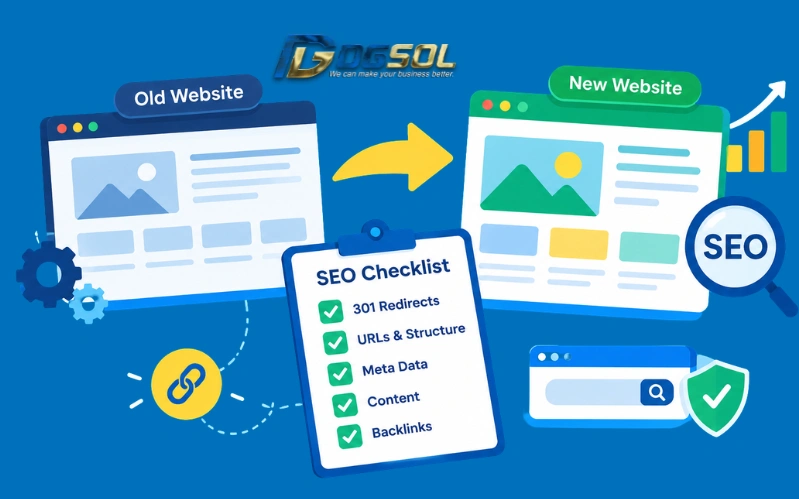
Before launch, test the new website in a staging environment. The aim is to catch technical SEO checklist before the new version replaces the live website.
1. Check Indexing and Robots Directives
Staging websites are often restricted from indexing during development. Ensure that staging-only restrictions will not accidentally remain after launch.
Check the live configuration for unintended noindex directives, robots.txt rules blocking important pages, or access restrictions preventing search engines from crawling the site.
Do not remove legitimate restrictions blindly. Confirm the intended indexing behavior of each affected page.
2. Validate Canonical Tags
Canonical tags indicate a preferred URL among duplicate or similar pages. Check that important pages use the intended canonical URL after migration. Canonical tags should be consistent with the new URL structure, internal linking, and sitemap entries where appropriate.
A canonical tag should not point to an old or irrelevant URL simply because the new template copied settings from the previous website.
3. Review XML Sitemaps
Prepare the XML sitemap for the new website.It should include appropriate canonical URLs that you want search engines to discover and consider for indexing. Review the output to ensure it does not contain unnecessary redirects, broken URLs, staging links, or pages that should not be indexed.
4. Check Status Codes and Redirect Behavior
Important live pages should return the expected status codes. Check that intended pages load successfully, moved pages redirect correctly, and removed pages are handled appropriately.
Review both the staging and live websites after deployment, as server rules and platform configurations may behave differently in production.
5. Test Internal Links and Navigation
Crawl the staging website to identify broken links, links pointing to old URLs, and important pages that are difficult to reach. Test navigation menus, breadcrumbs, related content, category listings, product links, and other important routes.
6. Review Mobile Usability and Page Performance
Test the new site across mobile and desktop devices. Review loading performance, responsiveness, visual stability, navigation, and important customer actions such as form submissions or checkout steps.
Pay particular attention to page templates that are used across many URLs. A problem with a shared template may affect hundreds of pages.
7. Validate JavaScript-Rendered Content
If the new website relies on JavaScript to display important content or navigation, verify that essential information and links are accessible as intended.
Test important page templates after changes to themes, scripts, or applications. Do not assume that visible content in a browser is automatically accessible to search engines in every configuration.
8. Check Structured Data and Language Annotations
Where relevant, compare the old and new structured data to ensure that product, organization, article, or other supported information remains accurate.
If the website serves multiple languages or regions, verify that hreflang annotations and corresponding language or regional pages remain correct. Implement these elements only where they are relevant to the website.
Website Relaunch SEO Checklist: Checks Before Going Live
Complete a final quality assurance review before the new website replaces the current version.
1. Crawl the Staging Website
Run a fresh crawl and compare the results with the existing website inventory. Review newly introduced errors, missing pages, duplicate metadata, unexpected redirects, and inaccessible resources.
2. Test the Most Important URLs
Manually check the pages that matter most to the business, including key service pages, important products, landing pages, and high-performing articles. Verify both the user experience and essential SEO elements.
3. Verify Metadata, Canonicals, and Robots Settings
Confirm that titles, descriptions, canonicals, and robots directives reflect the intended live configuration. Make sure staging restrictions are not accidentally carried over.
4. Confirm Redirect Rules and Internal Links
Test the old-to-new URL mapping and verify that internal links point to the correct destinations. Confirm that important old URLs do not lead to missing pages or irrelevant content.
5. Test Analytics and Conversion Tracking
Verify that analytics tags are present and that important events are recorded correctly. Test enquiry forms, contact options, purchases, and other relevant conversion actions. If tracking depends on consent settings or third-party integrations, check those paths as well.
6. Confirm Backup and Rollback Readiness
Ensure a recent backup exists and that the responsible team understands the recovery procedure if the launch causes critical technical problems.
Website Migration Traffic Drop: How to Diagnose SEO Problems
Some search fluctuations are normal after a migration, but a significant or persistent decline deserves investigation. Use a structured troubleshooting process instead of making several changes at once.
1. Check Whether the Traffic Drop Is Real
Compare equivalent time periods in Search Console and analytics. Check for seasonality, changes in demand, incomplete data, and broken analytics tracking.
If Search Console clicks remain stable but GA4 organic sessions suddenly fall, investigate the analytics configuration before assuming the migration caused an SEO visibility problem.
2. Check for Redirect Errors
Review important old URLs that return errors, point to incorrect destinations, or pass through unnecessary redirect chains. Compare live redirect behavior with your mapping spreadsheet and correct the affected rules.
3. Look for Indexing and Canonical Problems
Check for accidental noindex directives, robots.txt restrictions, incorrect canonical tags, and new URLs that are not being discovered or indexed as expected. Use URL Inspection and relevant Search Console reports to investigate affected pages.
4. Compare the Old and New Page Content
Determine whether important content, title tags, headings, images, internal links, or other relevant elements disappeared during the redesign.Compare affected pages with their previous versions and restore or improve useful elements where appropriate.
5. Review Technical Performance
Investigate server errors, unstable responses, page-loading issues, JavaScript issues, and mobile usability issues. If several pages use the same template, check whether one implementation problem is affecting an entire group of URLs.
6. Allow for Normal Migration Fluctuations
Google explains that rankings and search visibility may fluctuate temporarily while pages are recrawled and reindexed. The duration varies by website and migration complexity. Monitor changes over time, but do not use normal fluctuations as a reason to ignore broken redirects, blocked pages, or other confirmed technical problems.
Common Website Migration SEO Mistakes to Avoid
- Changing URLs Without a Redirect Map
Unplanned URL changes may leave existing links pointing to pages that no longer exist. Create and test the mapping before launch.
- Deleting Valuable Pages Without Reviewing Performance
A page may have valuable search traffic, conversions, backlinks, or customer information even if it appears outdated. Review its value before deciding whether to remove or consolidate it.
- Launching With Staging Restrictions Enabled
Accidental robots.txt blocks or noindex directives can prevent important pages from being processed as intended. Test the live configuration immediately after deployment.
- Forgetting Canonical Tags and XML Sitemaps
Incorrect canonical tags and outdated sitemaps can create inconsistent signals about the intended URLs. Validate the new configuration before and after launch.
- Redirecting Every Old Page to the Homepage
The homepage is rarely the right replacement for every page that was removed. Redirect to relevant destinations where they exist and handle permanently removed content appropriately.
- Skipping Post-Launch Monitoring
Even a carefully tested website can develop issues in production. Monitor important URLs, crawl errors, search performance, analytics, and conversions after launch.
- Expecting Every Ranking to Remain Unchanged
A website migration may lead to temporary fluctuations or longer-term changes in visibility. The goal is to reduce avoidable disruption, preserve useful content and signals, and resolve problems promptly—not to guarantee identical rankings.
Conclusion: Protect SEO During Your Website Migration
A successful website migration requires planning, technical testing, careful URL management, and ongoing monitoring. Start by auditing the existing website and identifying valuable pages. Map old URLs to the correct destinations, preserve useful content, test redirects, and validate technical settings before launch. After deployment, monitor Search Console, analytics, important URLs, and conversion data. If traffic declines, investigate the underlying cause rather than assuming the redesign is responsible for every change. For businesses planning a redesign or platform migration, a structured website migration SEO checklist helps coordinate SEO specialists, developers, content teams, and marketing stakeholders on the same set of requirements.
The goal is to launch a better website while preserving valuable content, maintaining access to important pages, and resolving SEO issues before they become larger problems.
Frequently Asked Questions
How Do I Migrate a Website Without Losing SEO?
Start by recording the existing website’s performance, inventorying important URLs, preserving useful content, mapping moved URLs, and implementing appropriate redirects. Test the new website before launch, then monitor indexing, traffic, and conversions after deployment.
Does a Website Redesign Affect SEO Rankings?
It can. A redesign may affect SEO when it changes URLs, page content, internal linking, metadata, technical accessibility, or page performance. A purely visual redesign with URLs and important content preserved may involve fewer risks, but the new templates still need testing.
How Long Does SEO Take to Recover After a Website Migration?
There is no fixed recovery period. Google must discover and process affected URLs, and the timing depends on the site’s size, server performance, crawlability, and migration complexity.
Do I Need 301 Redirects for Every Old URL?
No. Redirects are appropriate when URLs have permanently moved and a relevant destination exists. URLs that remain unchanged do not need redirects, while deleted pages without suitable replacements require appropriate handling rather than arbitrary redirects.
Should I Submit a New Sitemap After a Website Migration?
Yes, when the migration changes URLs or the sitemap needs updating. Submit a sitemap containing appropriate new canonical URLs through Google Search Console. Sitemap submission helps Google discover URLs but does not guarantee indexing.
What Should I Check if Organic Traffic Drops After Migration?
Start by checking whether analytics tracking still works. Then review redirects, server errors, robots.txt restrictions, noindex directives, canonical tags, content changes, internal links, and indexing information in Search Console.
Does a Domain Change Require a Separate SEO Migration Plan?
Yes. A domain migration requires old-to-new URL mapping, permanent redirects, updated internal links and sitemaps, Search Console monitoring, and updates to important external references.
Should I Keep 301 Redirects After a Website Migration?
Google recommends keeping redirects for as long as possible, generally for at least one year after a site move. Keeping them longer can help visitors and search engines that still encounter old URLs.