A WordPress SEO checklist Malaysia is a step-by-step list of the technical, on-page, and content tasks that help search engines crawl, understand, and rank your site. To optimize a WordPress website, fix the technical foundation first, add one SEO plugin, speed up your pages, then refine your content and track results. Work through the steps below in order, and most small business sites can see steady gains in rankings and inquiries.
Why Most WordPress Websites Struggle to Rank
You launched a good-looking website, yet it barely shows up on Google. Competitors with weaker products rank above you, and your traffic mostly comes from people who already know your name.
WordPress is flexible, but it doesn’t optimize itself. Default settings, heavy themes, unused plugins, and thin pages quietly hold sites back. The fix is a repeatable process, not a bigger budget.
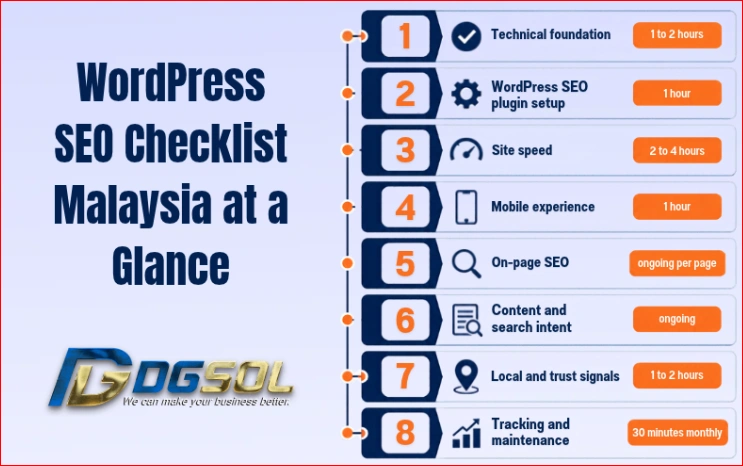
WordPress SEO Checklist Malaysia at a Glance
| Step | Focus | Typical time |
| 1 | Technical foundation | 1–2 hours |
| 2 | WordPress SEO plugin setup | 1 hour |
| 3 | Site speed | 2–4 hours |
| 4 | Mobile experience | 1 hour |
| 5 | On-page SEO | Ongoing, per page |
| 6 | Content and search intent | Ongoing |
| 7 | Local and trust signals | 1–2 hours |
| 8 | Tracking and maintenance | 30 minutes monthly |
Step 1: Set Up the Technical Foundation
Technical SEO for WordPress is about making sure Google can reach and read your pages. Start with these checks:
- Search engine visibility: Go to Settings > Reading and make sure “Discourage search engines from indexing this site” is unticked. Sites sometimes launch with this box still checked from development.
- Permalinks: Under Settings > Permalinks, choose “Post name” so URLs read like /services/web-design instead of /?p=123.
- HTTPS: Install an SSL certificate and redirect all HTTP traffic to HTTPS.
- One site version: Pick either www or non-www and redirect the other to it.
- Clean-up: Delete unused themes and plugins. They slow the site down and add security risk.
Once these are in place, connect your site to Google Search Console and submit your XML sitemap. Google’s SEO Starter Guide is a reliable reference for what search engines actually look for.
Step 2: Install and Configure a WordPress SEO Plugin
A WordPress SEO plugin handles sitemaps, meta tags, schema, and redirects from one dashboard. Popular options include Yoast SEO, Rank Math, and All in One SEO. Choose one and run only one, because two plugins can output duplicate tags and confuse crawlers.
After installing, configure these basics:
- Run the setup wizard and select your site type (business, blog, or online store).
- Enable the XML sitemap and confirm it loads at yoursite.com/sitemap_index.xml or similar.
- Set a default title format, such as “Page Title | Brand Name”.
- Add your organization details so schema markup is generated correctly.
- Set category and tag archives to “noindex” if they contain thin or duplicate content.
Step 3: Improve WordPress Site Speed
WordPress site speed affects both rankings and conversions. Visitors leave slow pages quickly, and Google measures real-world performance through Core Web Vitals. The targets to aim for are:
- Largest Contentful Paint (LCP): under 2.5 seconds
- Interaction to Next Paint (INP): under 200 milliseconds
- Cumulative Layout Shift (CLS): under 0.1
To hit them, work through this list:
- Use quality hosting with server-level caching. Cheap shared hosting is a common culprit.
- Choose a lightweight theme and avoid page builders that load heavy scripts on every page.
- Add a caching plugin and enable file minification.
- Compress images and serve them in WebP format. Oversized photos are the most common cause of slow pages.
- Turn on lazy loading so images below the fold load only when needed.
- Keep plugins to what you genuinely use.
Test your key pages with PageSpeed Insights before and after, so you can see what actually helped.
Step 4: Make Your Site Mobile-Friendly
Google predominantly uses the mobile version of your site for indexing, a process explained in its mobile-first indexing documentation. If your mobile pages hide content or load badly, your rankings suffer even when the desktop site looks perfect.
Open your site on a real phone and check three things. Can you read the text without zooming? Are buttons and links easy to tap? Do pop-ups cover the content? Fix whatever fails, starting with your homepage, service pages, and contact page.
Step 5: Apply On-Page SEO for WordPress
On-page SEO for WordPress means optimizing each page. On-page SEO clearly signals what it is about. Use this checklist for every important page and post:
- Title tag: Keep it under about 60 characters and place the main keyword near the front.
- Meta description: Write 150–160 characters that earn the click. It won’t boost rankings directly, but it influences click-through rate.
- Single H1: Use one H1 per page, then H2 and H3 headings for structure.
- URL slug: Keep it short and descriptive, such as /wordpress-seo-checklist.
- Opening paragraph: Mention the primary keyword naturally within the first 100 words.
- Image alt text: Describe each image plainly. Skip keyword stuffing.
- Internal links: Add three to five links to related pages using descriptive anchor text.
Here is a quick example. A bookkeeping firm’s services page titled “Services” gives Google very little to work with. Renaming it “Bookkeeping Services for Small Businesses | Brand Name” and rewriting the H1 and intro to match immediately clarifies the page’s purpose.
Step 6: Create Content That Matches Search Intent
Before writing a page, search your target keyword and study the top results. Are they guides, product pages, or comparisons? Match the format people clearly want, then add something competitors skip, such as pricing ranges, a checklist, or a real example.
Audit your existing content too:
- Merge or remove thin pages that say little.
- Update outdated posts with current information and refresh the published date only when the changes are real.
- Link new posts to older, relevant ones so authority flows through the site.
Three genuinely useful pages beat thirty rushed ones.
Step 7: Strengthen Local and Trust Signals
If your customers search for services in a specific area, local SEO matters as much as keywords. Claim and complete your Google Business Profile, and make sure your business name, address, and phone number match across your website and directories.
Add a visible contact page, customer reviews, and an About page that shows who is behind the business. Your SEO plugin can generate LocalBusiness schema, which helps search engines understand your details.
Step 8: Track Results and Maintain Your Site
SEO is not a one-time setup. Spend 30 minutes each month in Google Search Console and review:
- Indexing errors: Pages that Google can’t crawl or has excluded.
- Queries with low click-through: High impressions but few clicks usually mean a weak title or description.
- Declining pages: Posts losing clicks that need a refresh.
- Core Web Vitals: Any new speed or layout issues after plugin or theme updates.
Keep WordPress core, themes, and plugins updated, and take regular backups. A hacked or broken site can lose rankings fast.
Common WordPress SEO Mistakes to Avoid
- Leaving “discourage search engines” ticked after launch
- Running multiple SEO plugins at the same time
- Uploading full-size images straight from a camera or phone
- Publishing duplicate or near-identical pages for every location or service
- Ignoring Search Console until traffic drops
- Changing URLs without redirects, which breaks links and loses ranking
A WordPress SEO Checklist Malaysia Works When You Repeat It
The best WordPress SEO checklist Malaysia is the one you actually follow. Fix the technical basics, choose one SEO plugin, speed up your pages, and optimize each page for the search intent behind it. Then review your results monthly and keep improving. Small, consistent actions compound far more reliably than one big overhaul.
If you’d like help applying this WordPress SEO checklist for Malaysia and optimizing your website for better rankings, contact DGSOL, and we’ll help you put it into practice.
Frequently Asked Questions
What is a WordPress SEO checklist?
It is a step-by-step list of technical, on-page, and content tasks that help your WordPress site rank better. Following it in order keeps your optimization organized and complete.
How do I optimize a WordPress website for SEO?
Fix technical settings, install one SEO plugin, improve site speed, and optimize titles, headings, and content. Then track performance in Google Search Console.
Which WordPress SEO plugin is best?
Yoast SEO, Rank Math, and All in One SEO all cover the essentials well. Pick the one whose interface suits you and use only one.
Does WordPress site speed affect SEO?
Yes, because Google uses Core Web Vitals as a ranking signal, and slow pages also lose visitors. Better hosting, caching, and compressed images make the biggest difference.
How long does it take for WordPress SEO to work?
Most sites see early movement within three to six months, depending on competition and site quality. Consistent updates speed up the results.
Do I need a developer to follow this checklist?
Most steps can be done from the WordPress dashboard. Speed fixes and technical issues may need a developer’s help.
How often should I update my WordPress SEO?
Review Google Search Console monthly and audit your key pages every quarter. Update plugins and content regularly.
Is on-page SEO for WordPress different from other platforms?
The principles are the same, but WordPress makes them easier through plugins that manage titles, meta tags, and schema. You still need to write quality content yourself.
Disclaimer: This article is for informational purposes only and does not constitute legal advice. Businesses should consult a qualified legal professional to ensure full compliance with Malaysia’s Personal Data Protection Act (PDPA). Always back up your WordPress site before making changes, and consult a qualified professional if you are unsure.